A 40-page PDF can hide its one useful paragraph on page 27. That’s why I stopped reading reports cover to cover and started running them through an AI tool first.
The catch is that these tools behave very differently. Some cap you at a few documents a day, some ignore your charts, and some choke on large files. If you’re a student, a researcher, or anyone who reads long documents for work, choosing the right one saves real hours!
➡️ So I compared 11 options for this list, using each tool’s help and pricing pages rather than marketing claims. Read this article to see the clear comparison between the tools and choose which one to add to your workflow.
✅ Quick Summary
- Best free AI PDF summarizer: Getsolved AI Summarizer, a free tool to summarize PDF, Word, and TXT files.
- Best for many PDFs at once: NotebookLM, with up to 50 sources per notebook.
- Best for charts and tables: Claude, which can read visuals in PDFs up to 100 pages long.
- Best AI summarizer for academic work: Scholarcy, built for research papers.
What Is an AI PDF Summarizer?
Before we begin, let’s understand what a summarizer is.
- A good AI summarizer reads your PDF content and turns long documents into short summaries of the key points or main idea, so you can decide what deserves a full read. Some AI summarizers only shorten the text.
Others work like an AI assistant: you ask it to summarize one section, compare several files, or turn the content into a visual map. Whatever way a summarizer works, you still want an AI document summarizer that fits your files.
How I Chose These Tools
I ranked these AI summarization tools by how far each free version gets you, then by how well each handles lengthy documents. I checked:
- limits on file size;
- whether you can upload a PDF or paste the text;
- whether audio or video files work;
- what happens to your data.
Every limit below comes from the vendor’s own documentation. Where a number comes from reviews instead, I say so.
Comparison Table
The table puts the best AI PDF summarizer tools side by side.
| Tool | Best for | Free option | Key limit |
|---|---|---|---|
| Getsolved AI Summarizer | Fast summaries | Yes, after sign-up | 25MB upload |
| NotebookLM (Gemini Notebook) | Many PDFs | Yes | 50 sources per notebook |
| Claude | Charts and tables | Free plan | Visuals up to 100 pages |
| ChatGPT | Custom prompts | Yes | 3 uploads a day (free) |
| Gemini | Google AI users | Yes | 10 files per prompt |
| Adobe Acrobat AI Assistant | Acrobat users | Paid add-on | From $4.99/month at launch |
| ChatPDF | Quick questions | Yes | 2 PDFs a day |
| QuillBot Summarizer | Short texts | Yes | 1,200 words free |
| Smallpdf AI PDF Summarizer | PDF toolkit users | Free account | Usage limits apply |
| Scholarcy | Research papers | Yes | 10 free summaries |
| MindMap AI | Visual learners | Yes | 50 free credits |
Best 11 AI Summarizers
1. Getsolved AI Summarizer
🏆 Best for: fast PDF and Word file summarization.
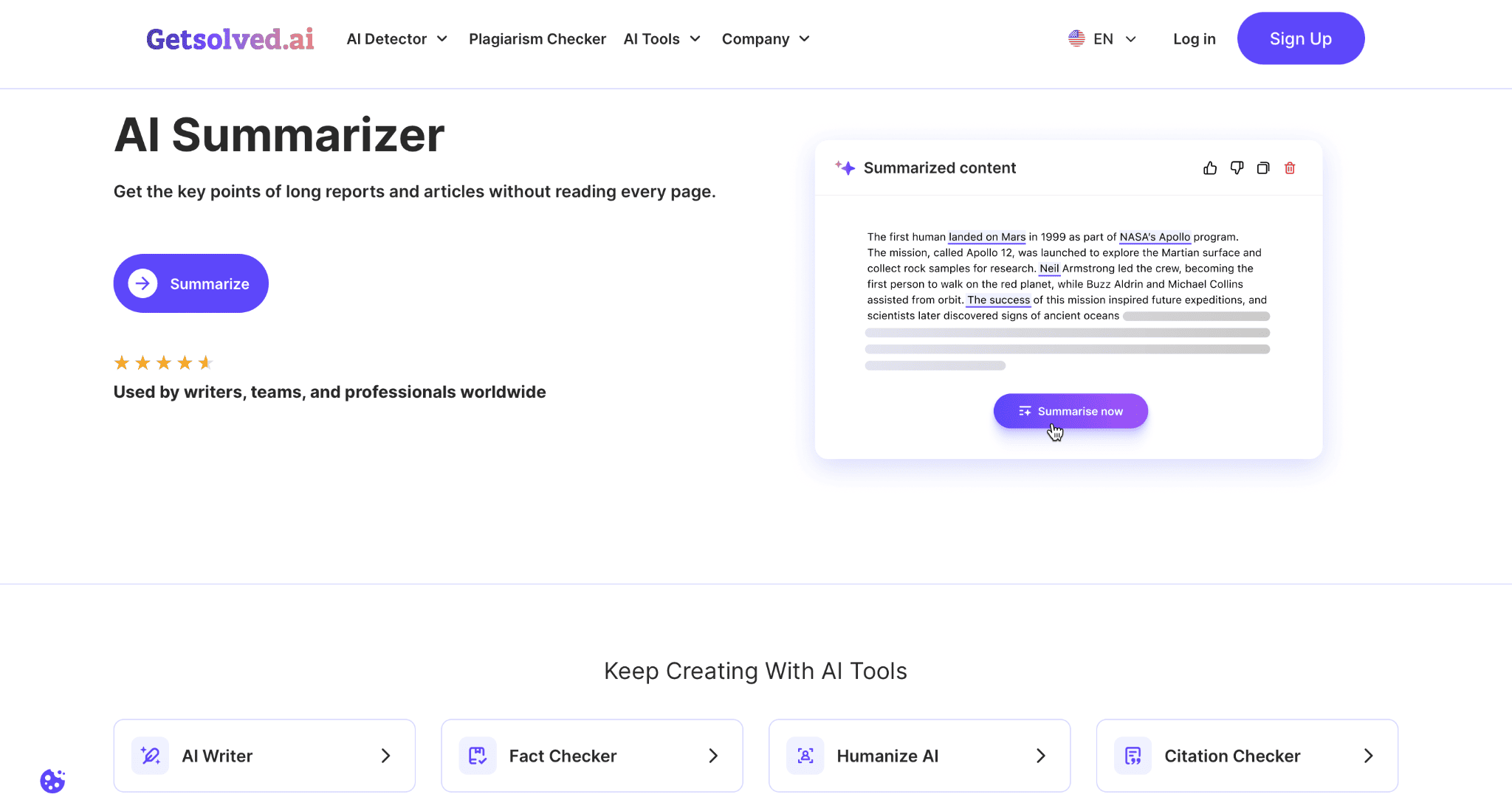
This is the tool I’d try first if you want a free AI tool without a learning curve. You upload a PDF, choose short bullet points or a longer paragraph, and the AI generates a summary of the entire file, not just the first pages.
If one section needs a closer look, you can ask AI follow-up questions with another GetSolved tool.
Key features:
- Accepts PDF, DOC, DOCX, and TXT files up to 25MB.
- Summarizes files up to 10,000 words in one go; longer ones take more time.
- Bullet or paragraph output; choose PDF or Word for the download.
- Can summarize any content you paste in as text.
- Files aren’t used to train public AI models, according to its page.
Pros:
- Core summarization is free to use after a one-minute sign-up.
- Bullet or paragraph output.
Cons:
- One pass covers files up to 10,000 words, so longer files run more slowly.
- Account required.
2. NotebookLM (Gemini Notebook)
🏆 Best for: summarizing multiple PDFs.
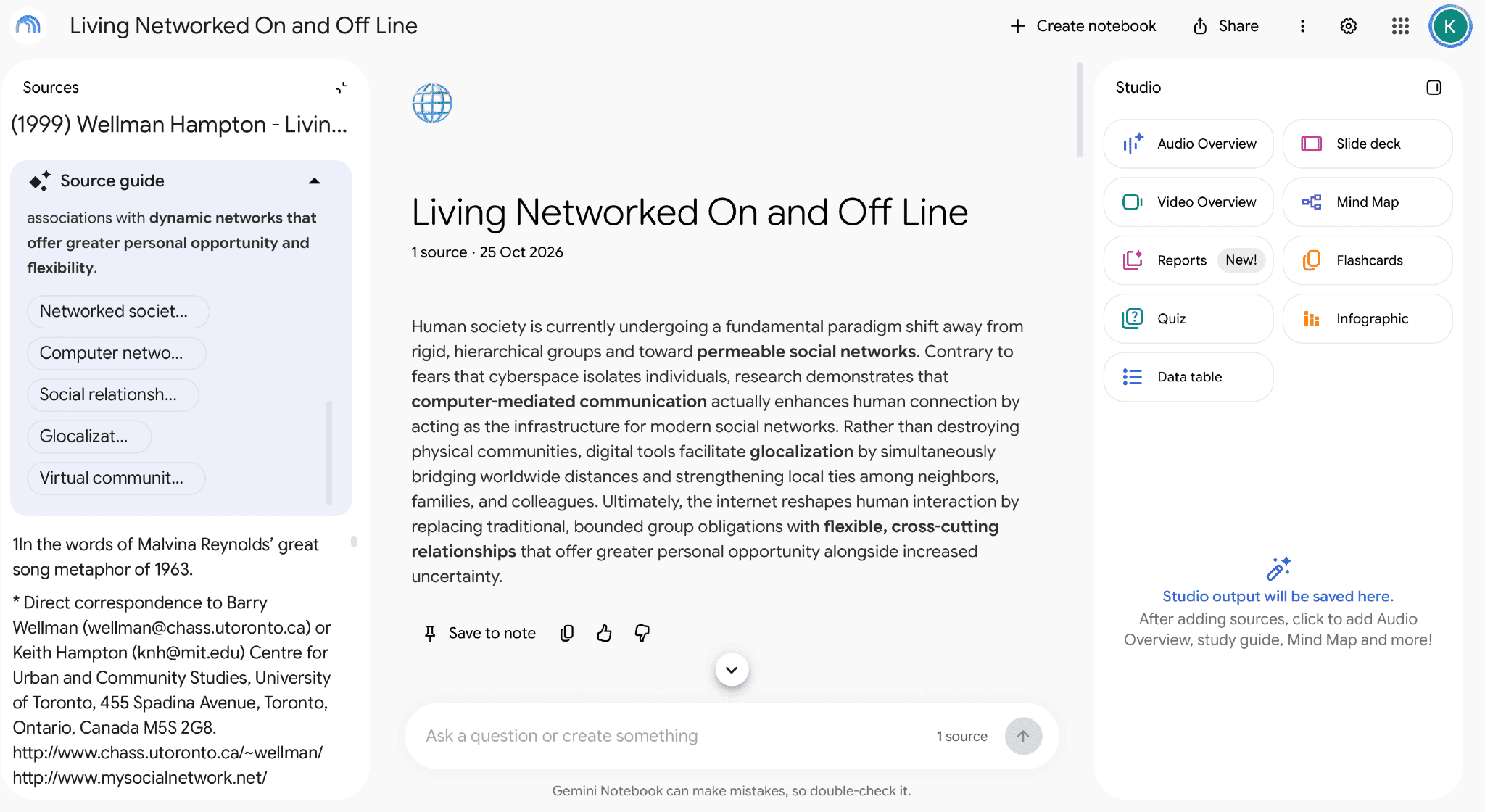
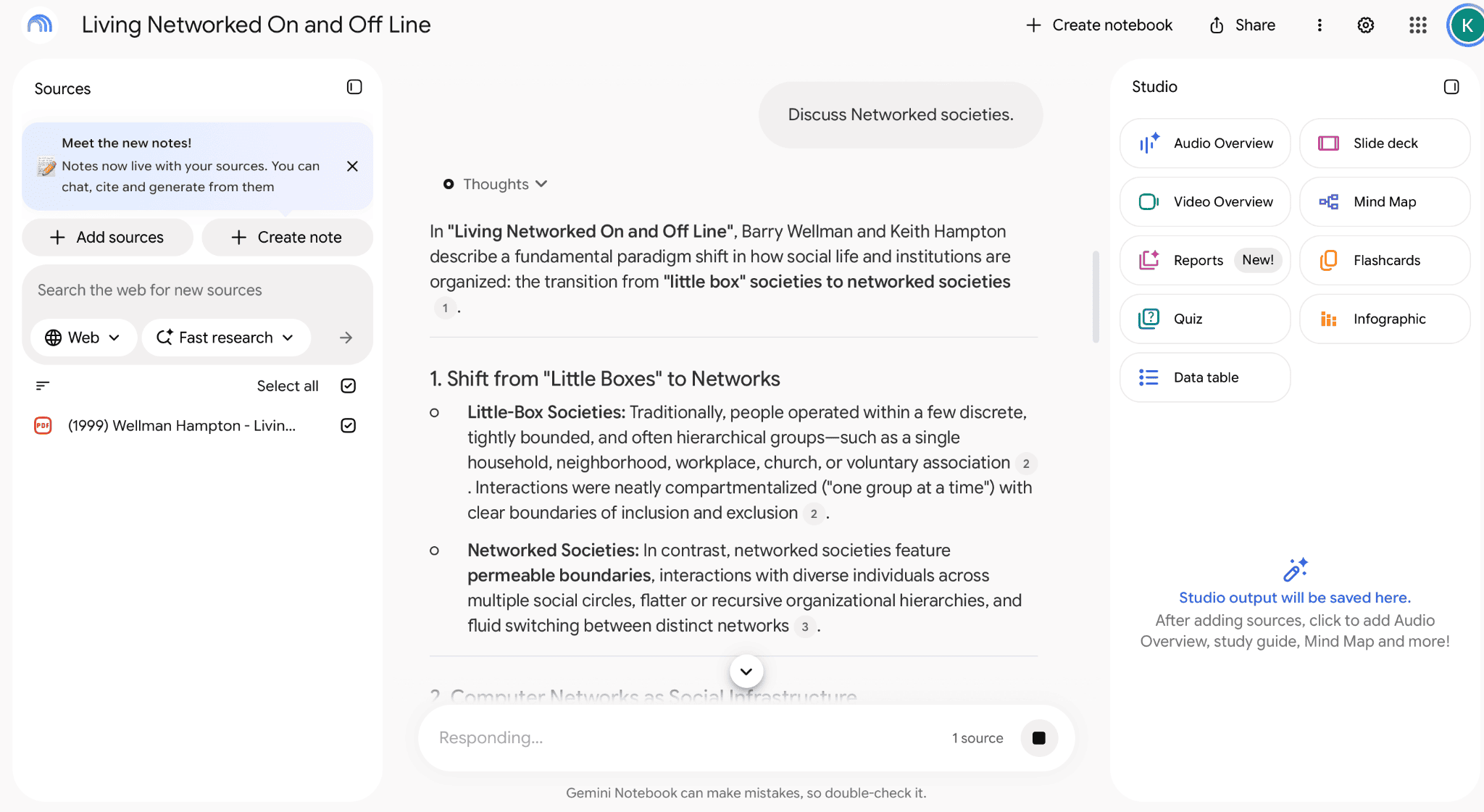
Google’s NotebookLM, now renamed Gemini Notebook, treats your files as a shared library, so you can upload PDFs and summarize one or question all of them. Google’s help page says each source can hold up to 500,000 words or 200 MB, with no page limit, and that one notebook can include up to 50 sources.
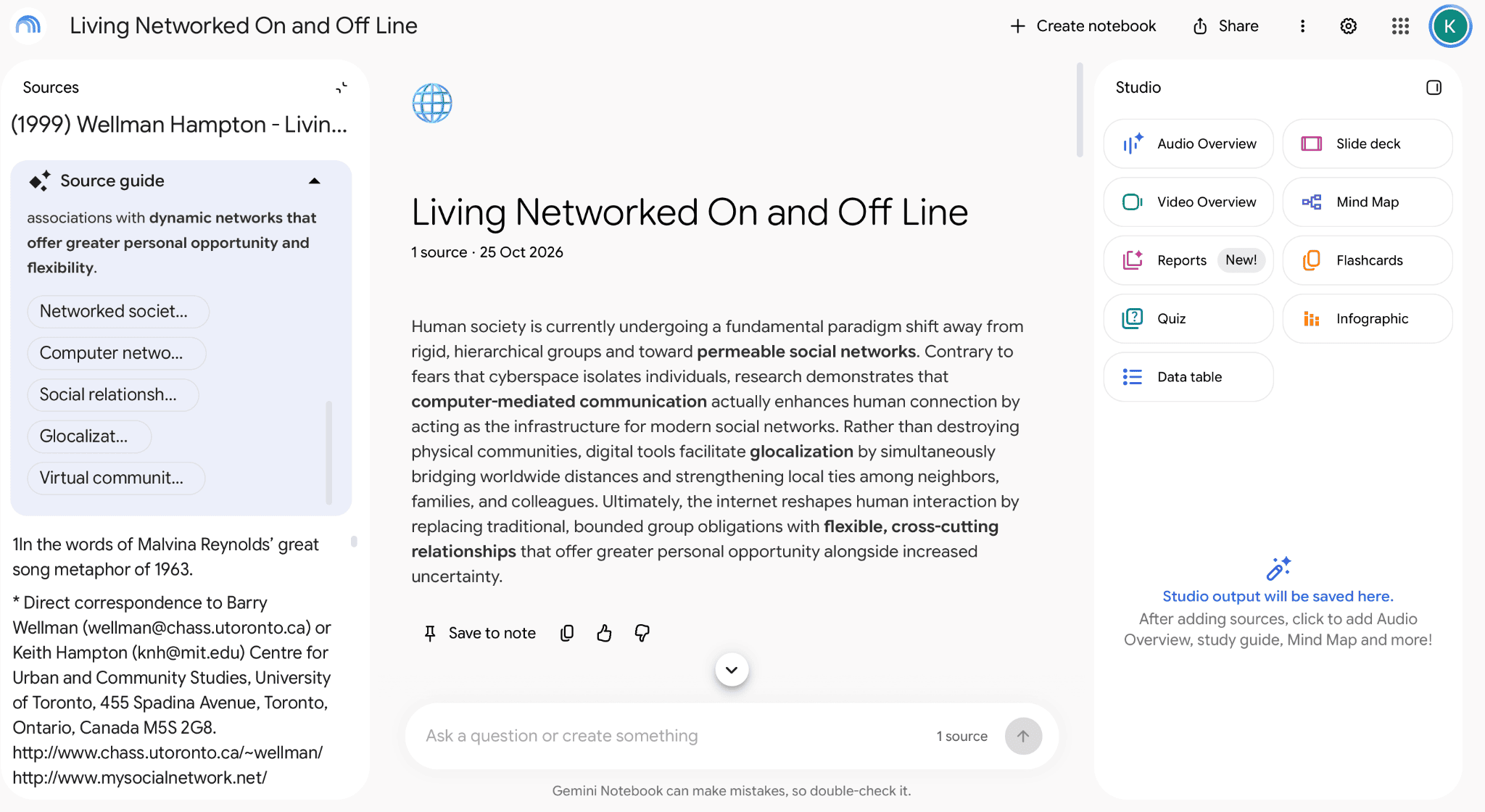
Key features:
- 50 sources per notebook.
- Answers drawn from your uploaded sources.
- 50 chat queries a day on the free plan.
Pros:
- Free to use.
- Handles many PDFs with no page limit.
Cons:
- The free plan caps chat at 50 queries per day.
3. Claude
🏆 Best for: long reports with charts and tables.
Claude is the smart AI I’d pick when the visuals matter. Anthropic’s help center says it analyzes text and images in PDFs of 100 pages or fewer, then reads text only up to 1,000 pages.
Advanced AI can still misstate a number, so I run key figures through an AI fact checker before reusing them.
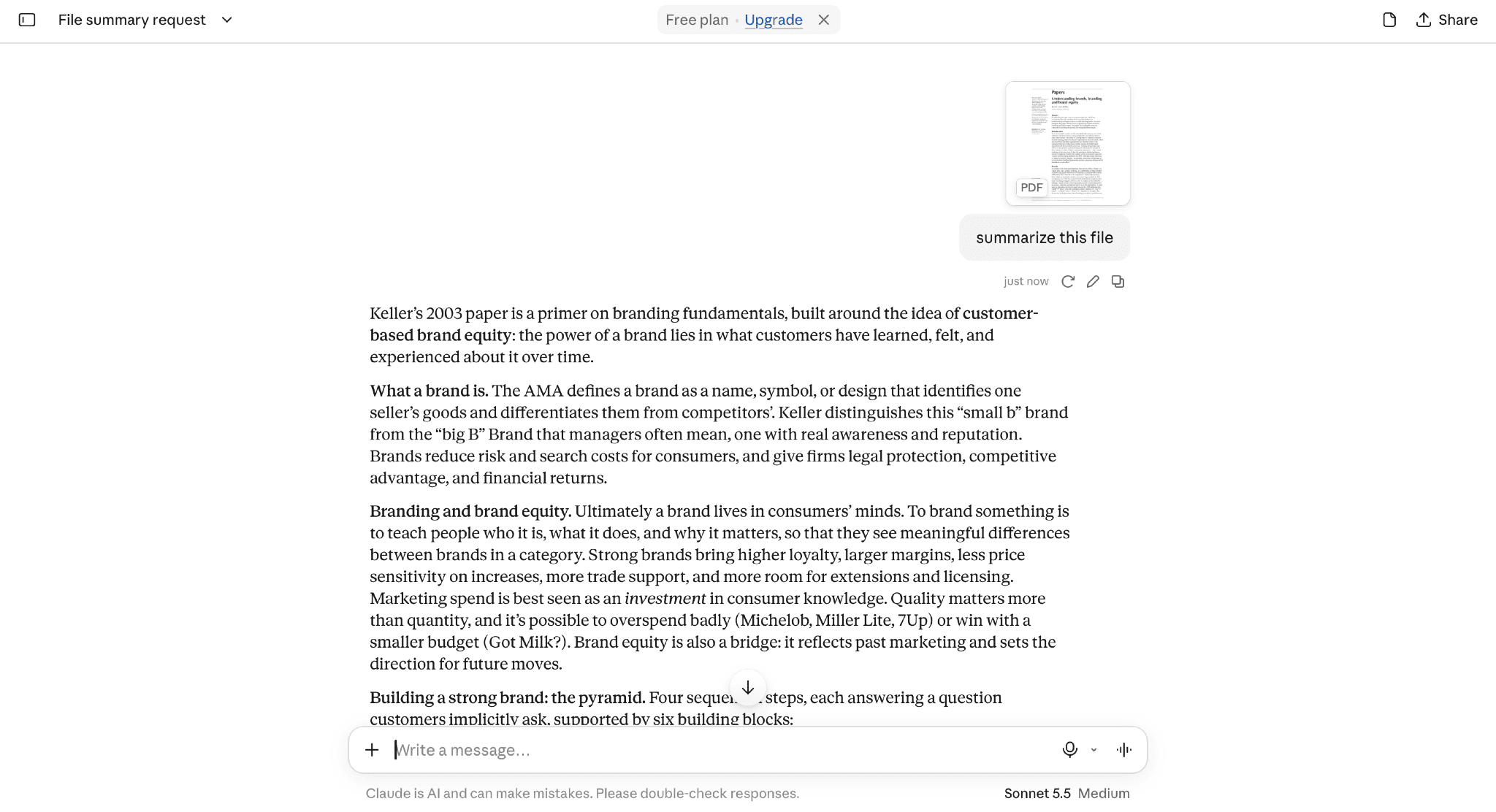
Key features:
- Reads charts and graphics in PDFs up to 100 pages.
- Accepts PDFs up to 1,000 pages.
- Up to 20 files per chat.
Pros:
- Reads charts in PDFs up to 100 pages.
- Accepts up to 1,000 pages.
Cons:
- Visuals are skipped past page 100.
- The free plan has usage limits.
4. ChatGPT
🏆 Best for: custom prompts and flexible summaries.
When you use an AI assistant like ChatGPT, you steer the summary: ask it to summarize for action items, a plain-language version, or the main idea of each section. OpenAI’s file FAQ lists a 512 MB limit per file and a 2 million-token limit per document, while free users get 3 uploads per day.
📌 One catch: outside Enterprise, it extracts text and discards images, so charts won’t be read.
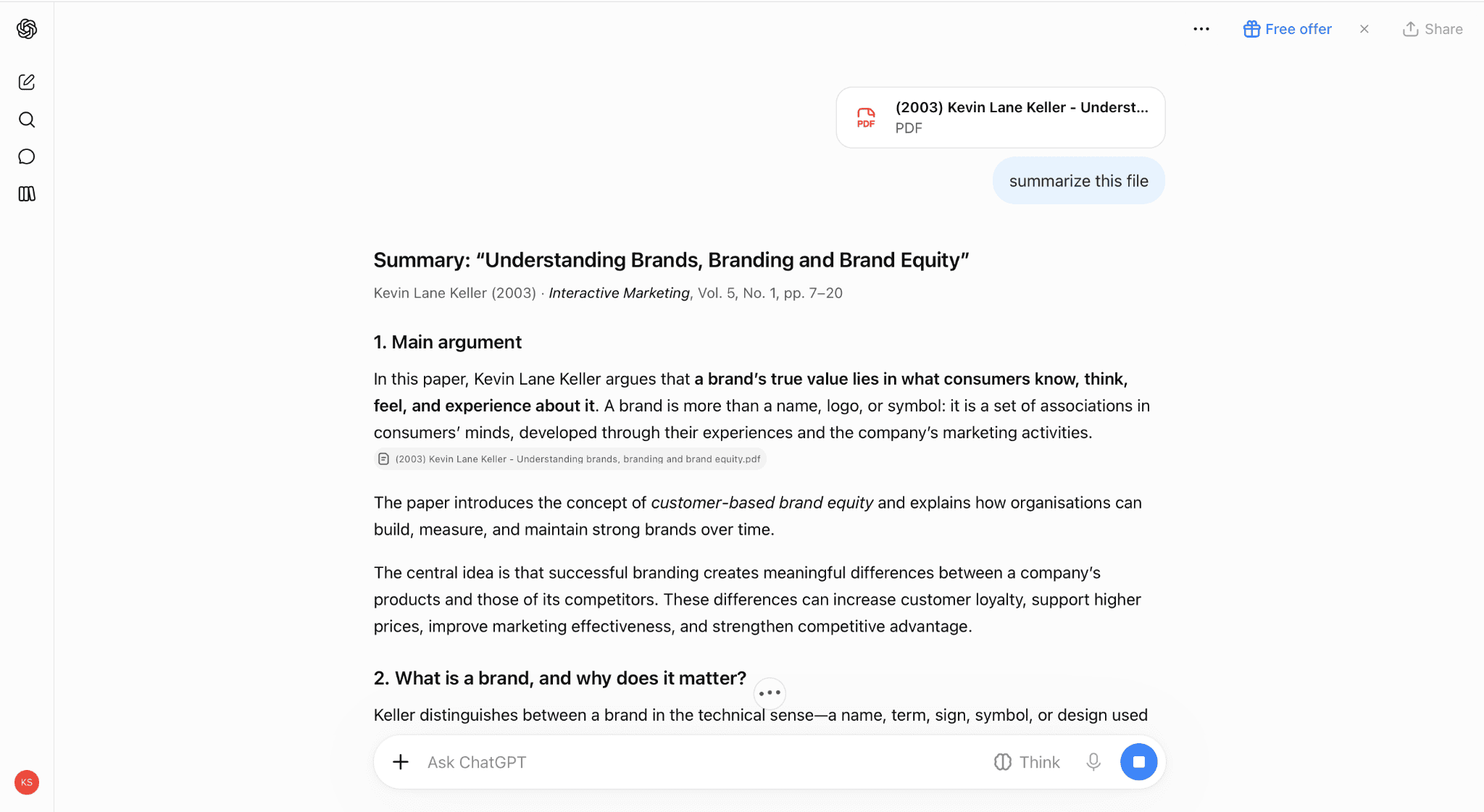
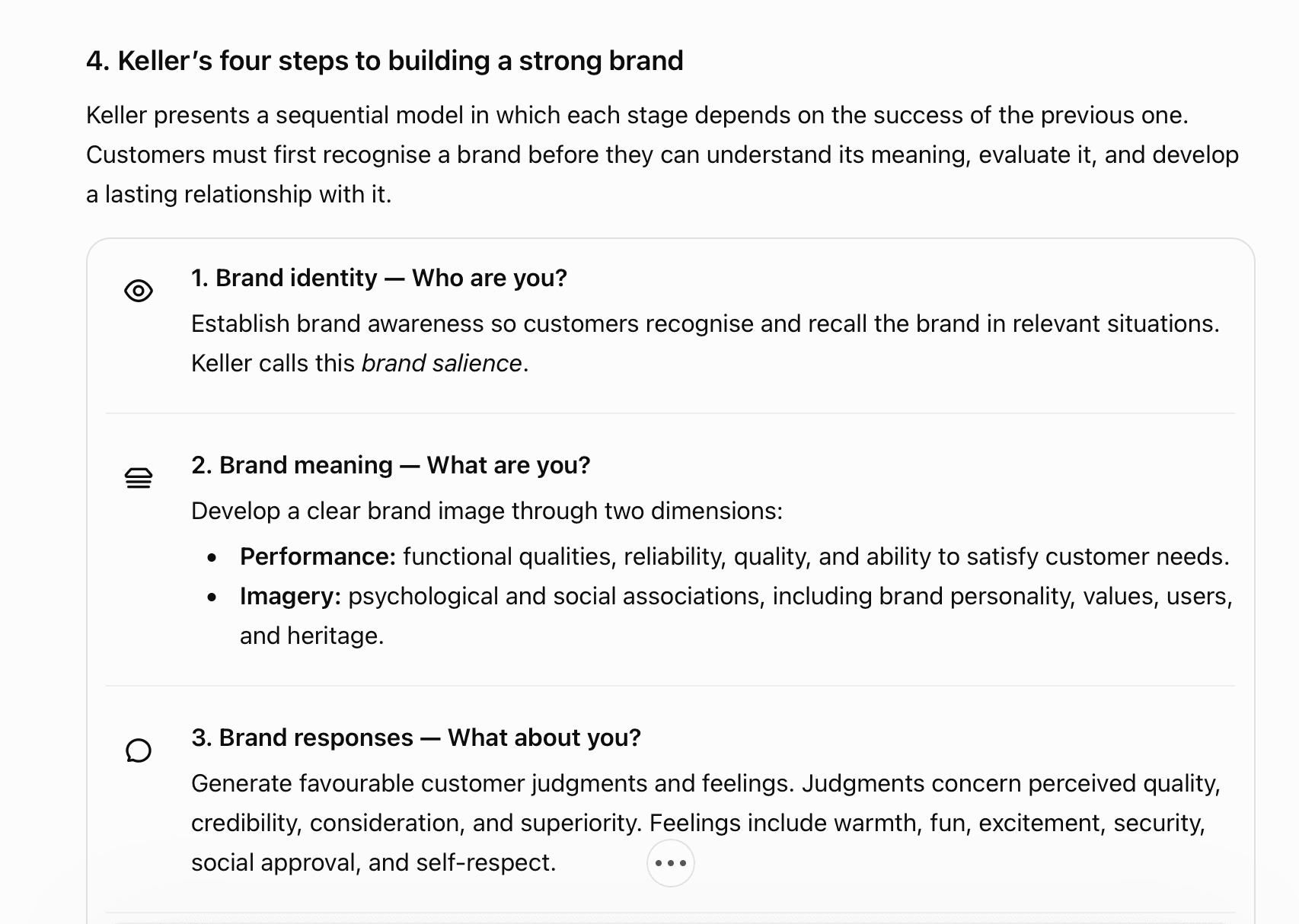
Key features:
- Prompt-based control over length and style.
- Follow-up questions in the same chat.
- Handles documents, spreadsheets, and presentations.
Pros:
- Full control over the prompt.
- Easy follow-ups.
Cons:
- Images are discarded outside Enterprise.
- Free users get 3 uploads a day.
5. Gemini
🏆 Best for: people who already use Google AI.
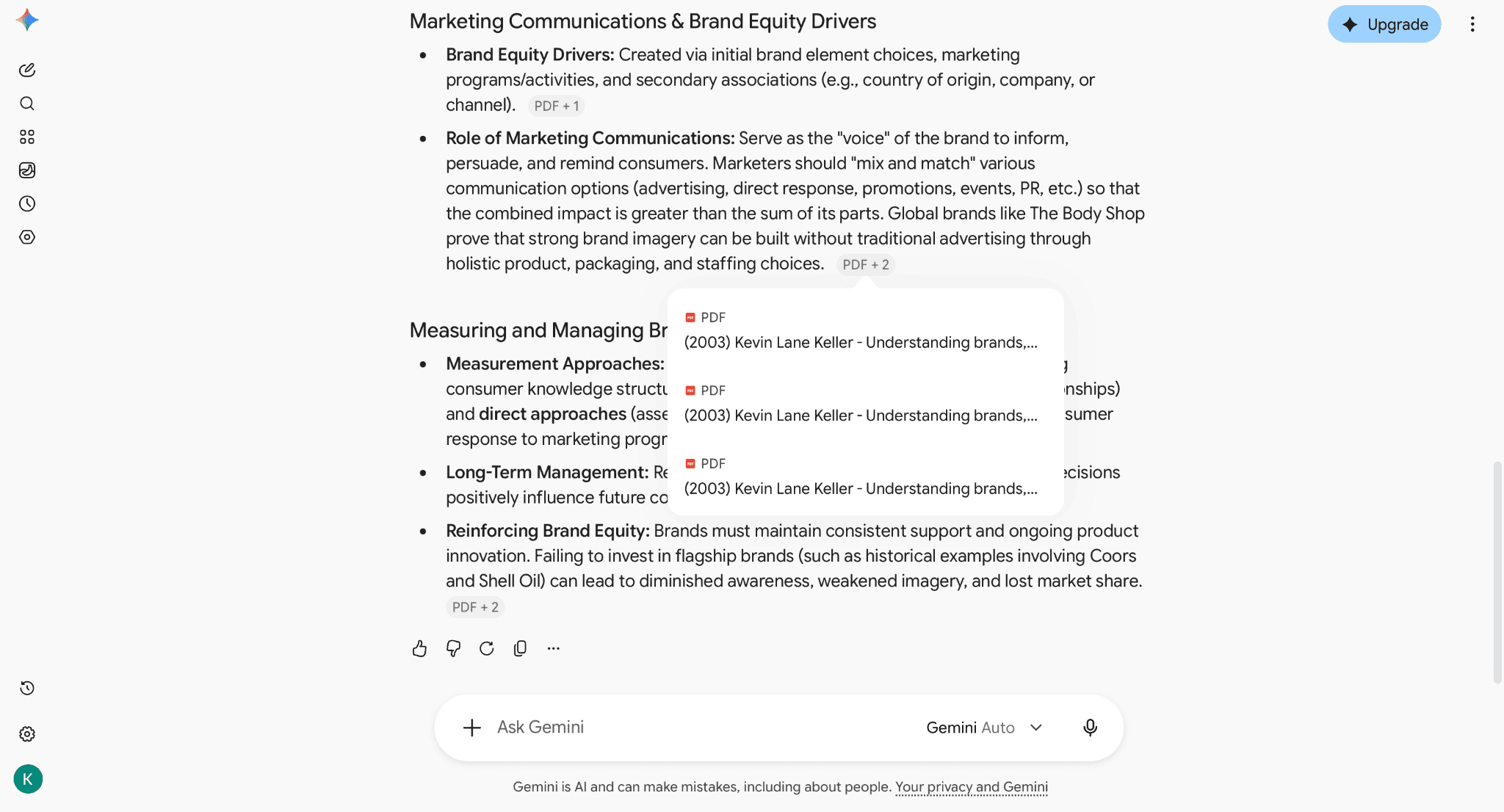
Google’s help page for Gemini Apps allows up to 10 files per prompt, each up to 100MB. It also accepts audio or video files, such as lecture recordings. If you’re already signed in, it’s a popular AI route to a quick PDF summary, and you can summarize your PDF without another account.
.
Key features:
- 10 files per prompt.
- 100MB per document.
- Accepts documents, images, audio, and video.
Pros:
- 10 files per prompt.
- Accepts video and audio.
Cons:
- 100MB cap per file.
- Higher limits require a paid Google AI plan.
6. Adobe Acrobat AI Assistant
🏆 Best for: people who already work in Acrobat.
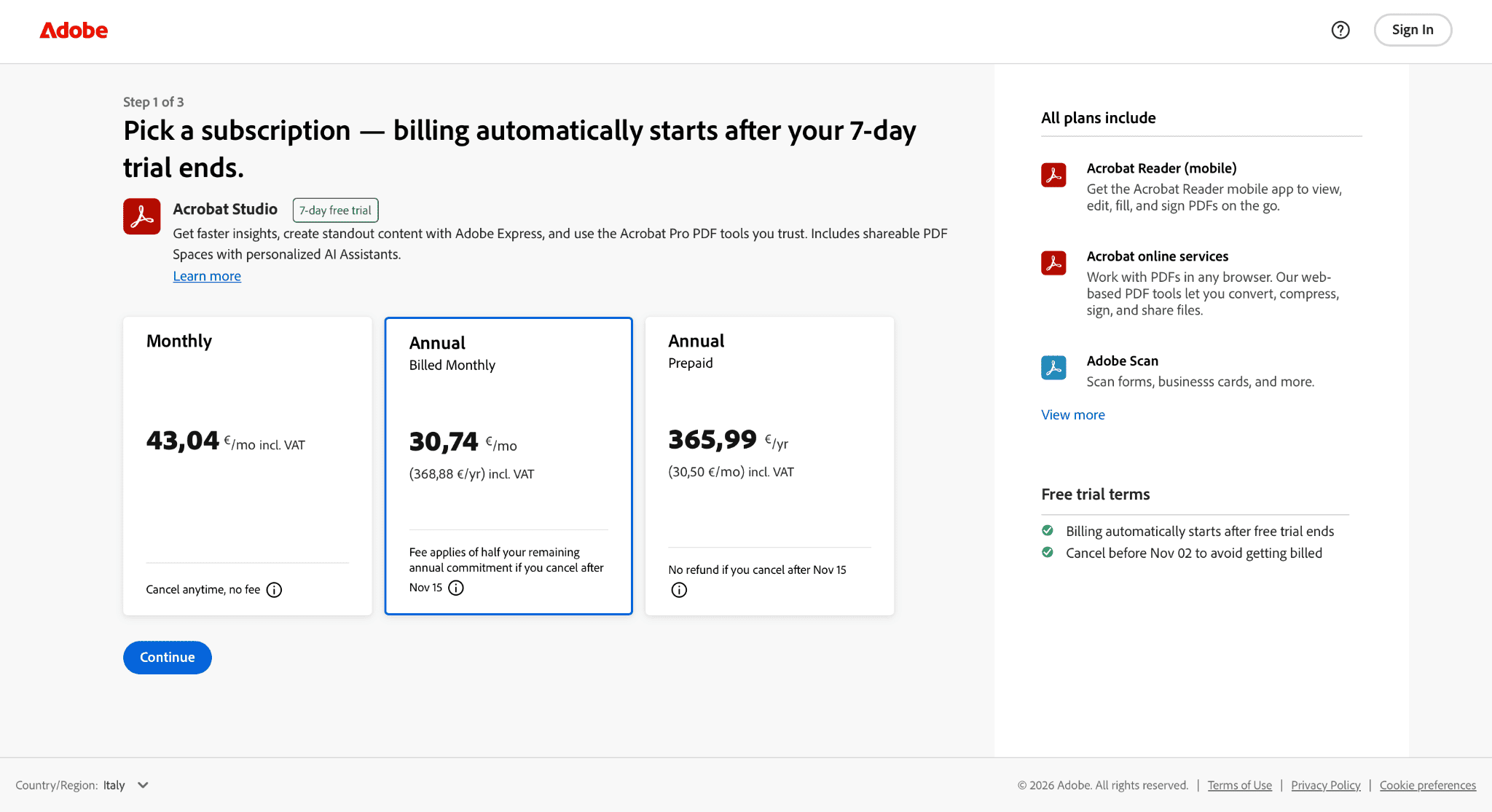
Adobe Acrobat AI arrived as an add-on for Reader and Acrobat, priced at $43.04 a month, so it’s best for summarizing PDFs if your files already live there, since it’s pretty expensive. Adobe’s announcement says it summarizes long documents and surfaces action items, and that customer content isn’t used to train its assistant without consent.
Key features:
- The summaries and questions are in the PDF you have open.
- Works across Reader, desktop, and web.
- Also handles Word, PowerPoint, and meeting transcripts.
Pros:
- Works inside the PDF you already have open.
- Also covers Word and PowerPoint files.
Cons:
- Paid add-on and expensive.
- Only a 7-day free trial.
7. ChatPDF
🏆 Best for: quick questions about one PDF.
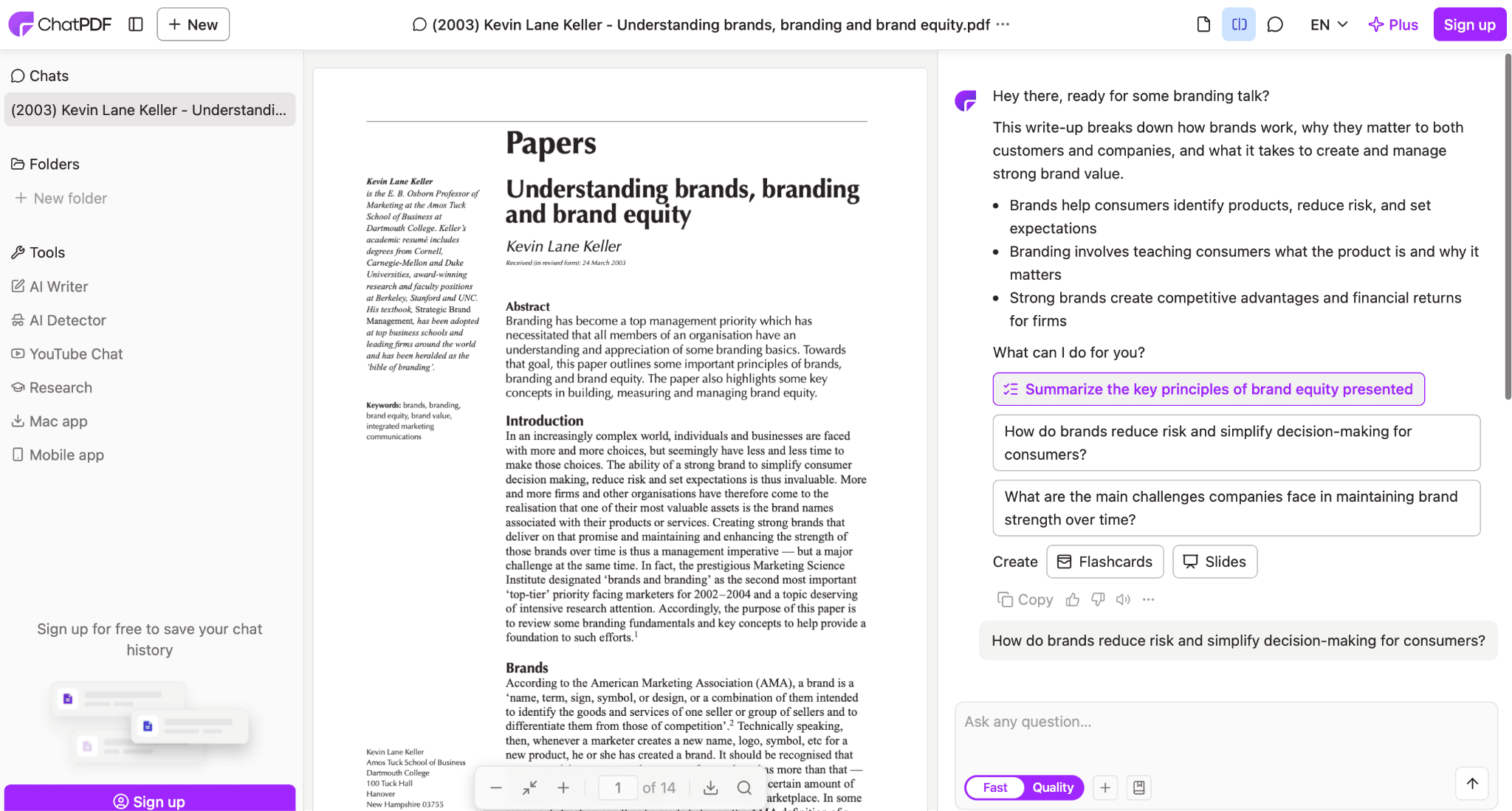
ChatPDF is a simple tool for summarizing and asking questions about a single file: upload your PDF, then ask. Reviews report a free plan that allows 2 PDFs per day, up to 120 pages each, which is fine for the occasional paper but tight for daily work.
To be honest, this tool has a clear interface and is perhaps one of the easiest to use.
Key features:
- Chat-style questions in a single file.
- Auto-summary after upload.
- Paid plan lifts page and file size caps.
Pros:
- Simple, chat-style questions.
- No learning curve.
Cons:
- Tight free daily cap.
- One file at a time on the free plan.
8. QuillBot Summarizer
🏆 Best for: short texts and article-length documents
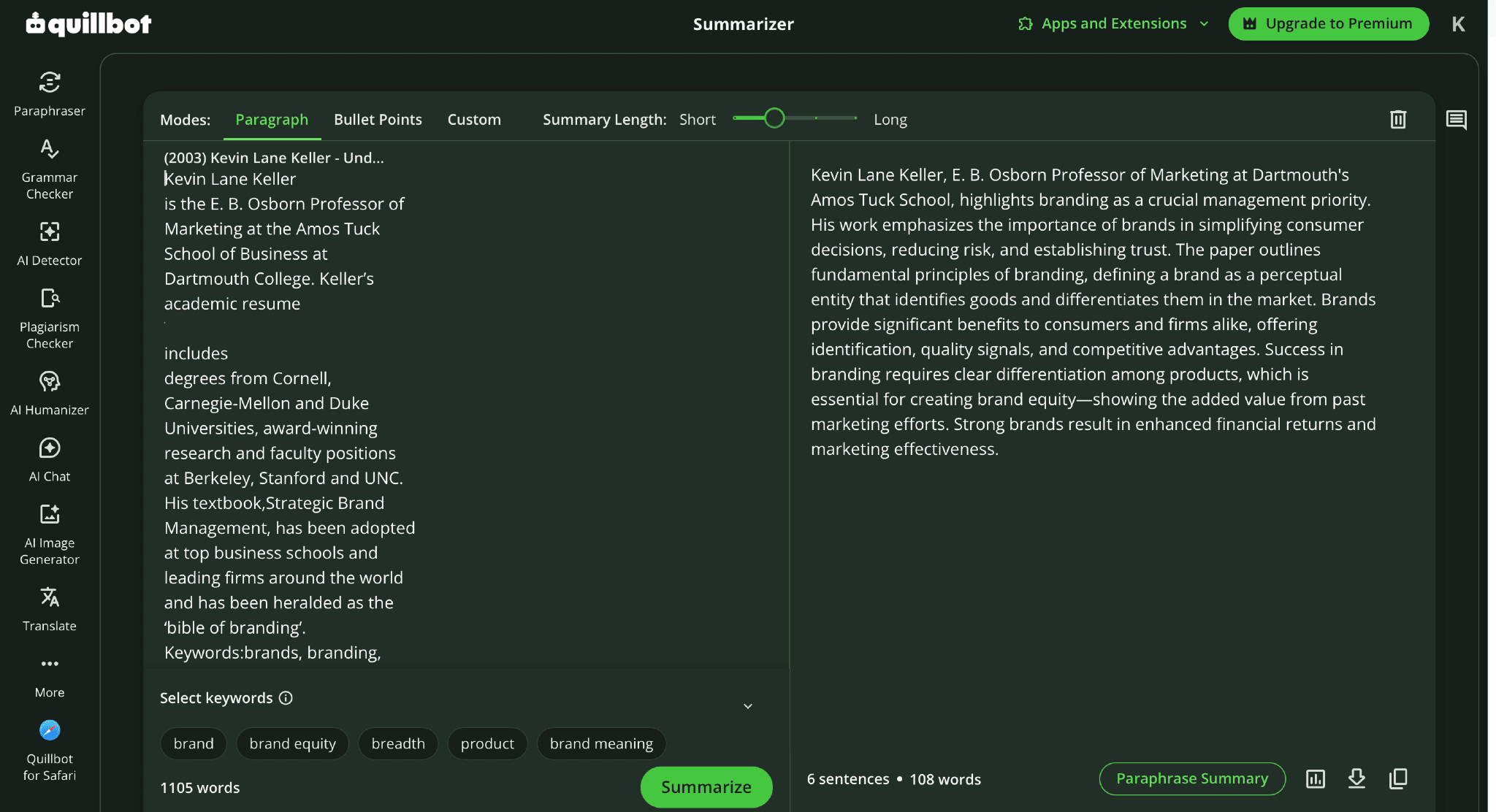
QuillBot is an AI text summarizer with Key Sentences and Paragraph modes and a length slider. Its help center lists 1,200 words per summary on the free plan and 6,000 on the Premium plan, so I wouldn’t use it for a 100-page report. For a paper section where you can paste the text, it works well. Not good for PDF files.
Key features:
- Two summary modes.
- Adjustable length.
- Paste text or upload a file on paid plans.
Pros:
- Two summary modes.
- Adjustable length.
Cons:
- 1,200-word free cap.
- Not built for long PDFs.
9. Smallpdf AI PDF Summarizer
🏆 Best for: people who already use SmallPDF.
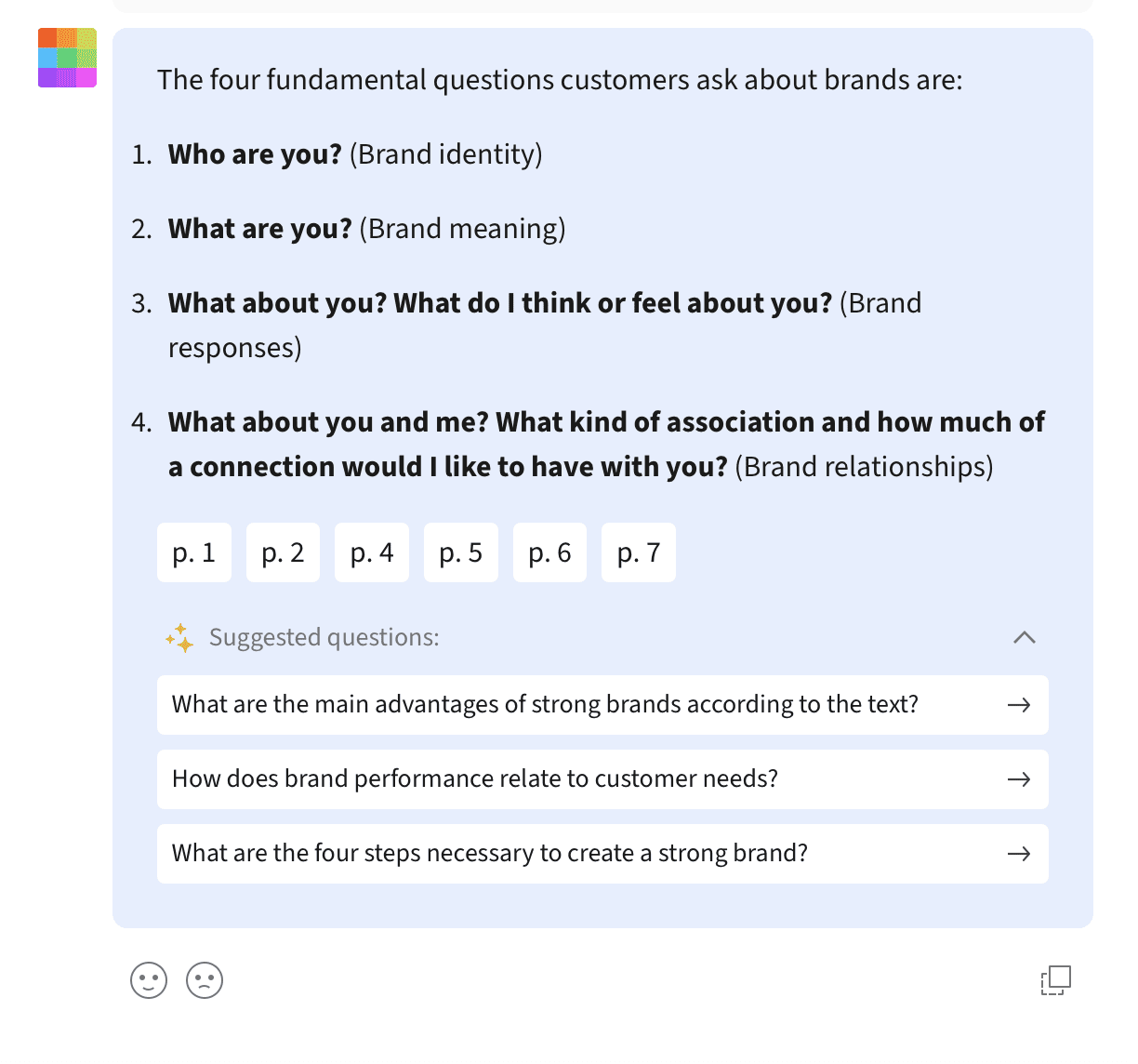
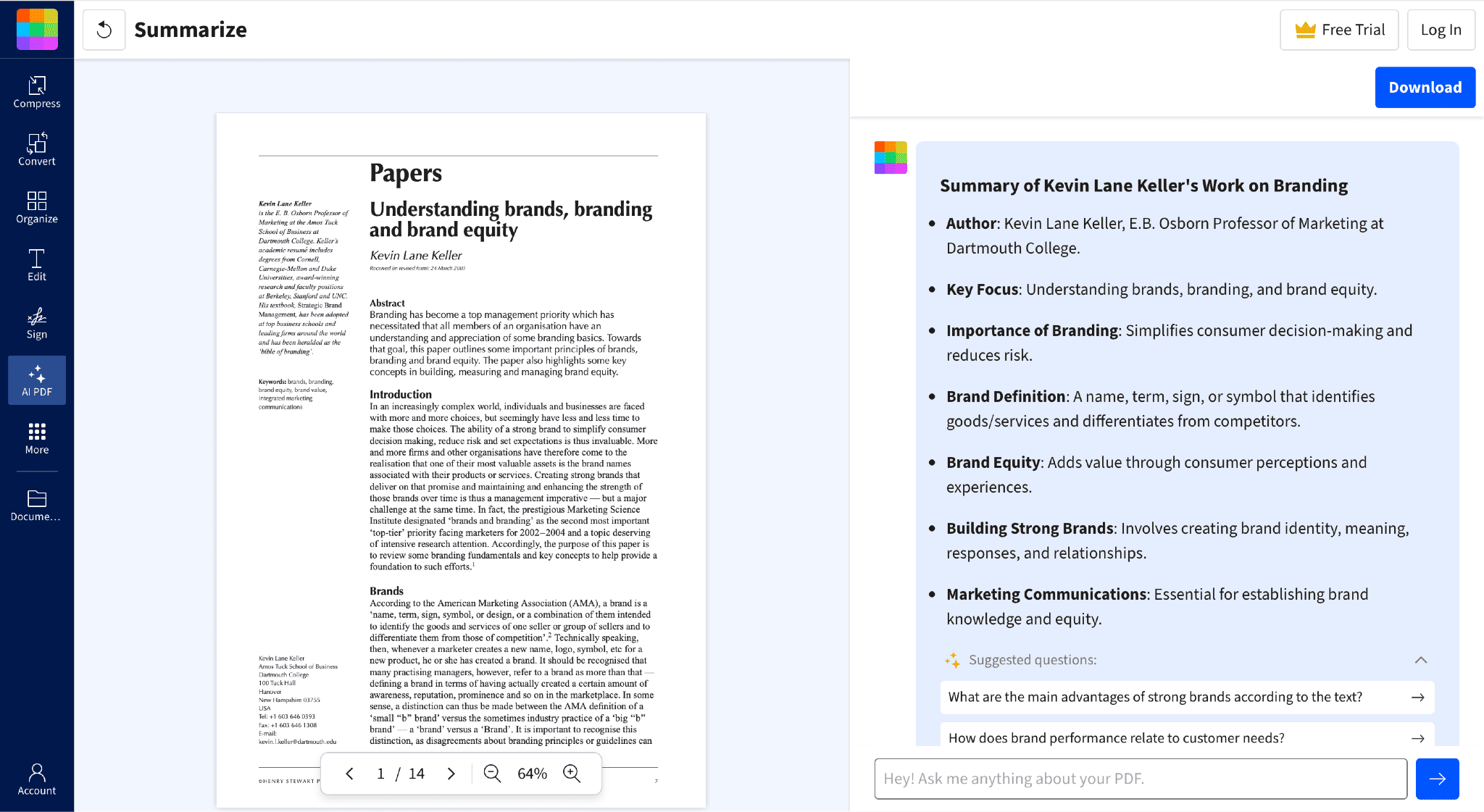
Smallpdf’s own blog says its summarizer creates an overview after upload, supports follow-up questions, and includes page references so you can check the source. A free account lets you try it with usage limits, and Pro comes with a 7-day free trial. It makes the most sense if you already compress or merge files there.
Key features:
- Overview generated on upload.
- Page references for checking claims.
- Part of a larger PDF toolkit.
Pros:
- Page references make checking easy.
- Part of a full PDF toolkit.
Cons:
- A free account has usage limits.
- Unlimited use needs Pro.
10. Scholarcy
🏆 Best for: research papers, for students and researchers.
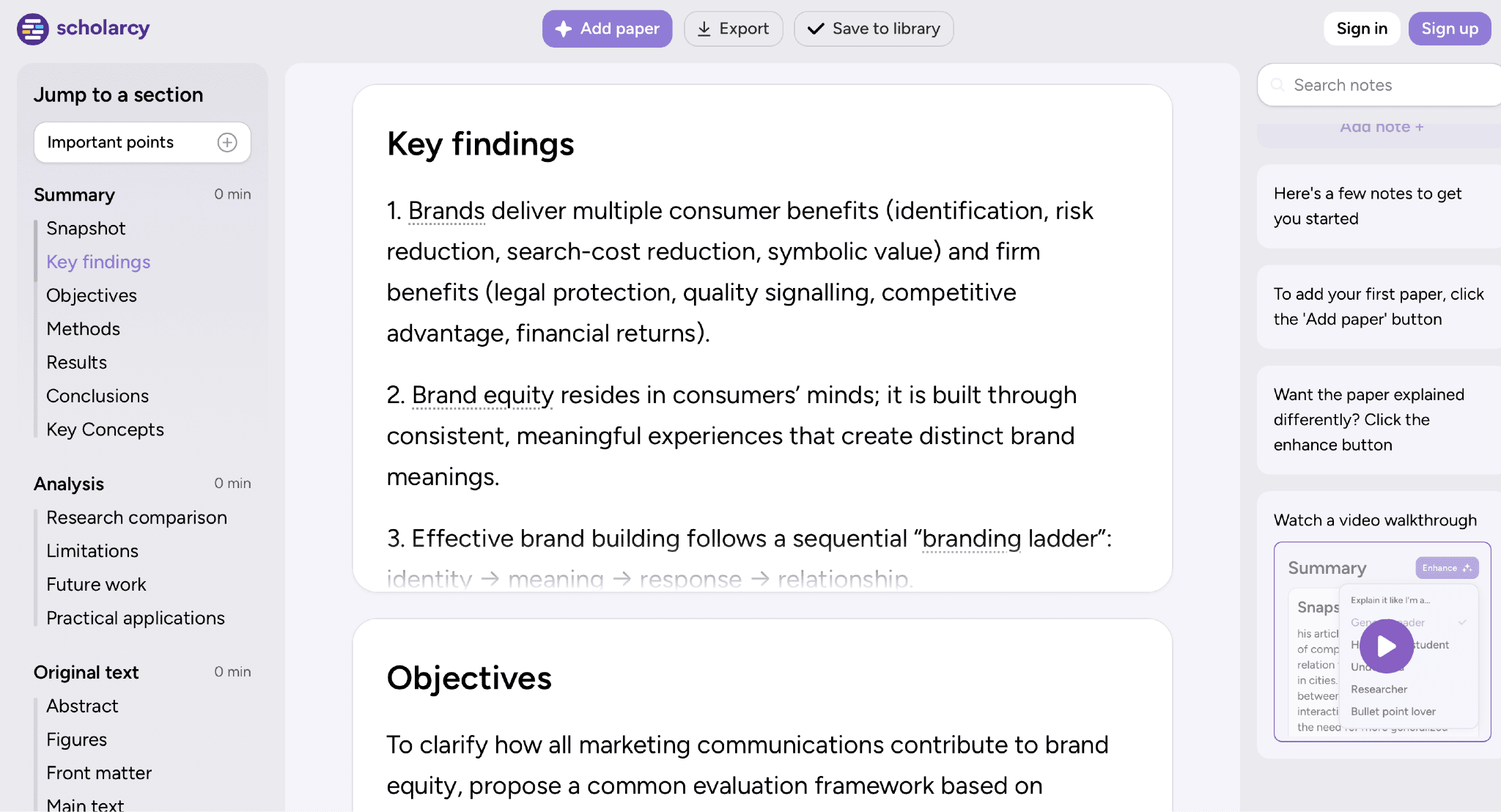
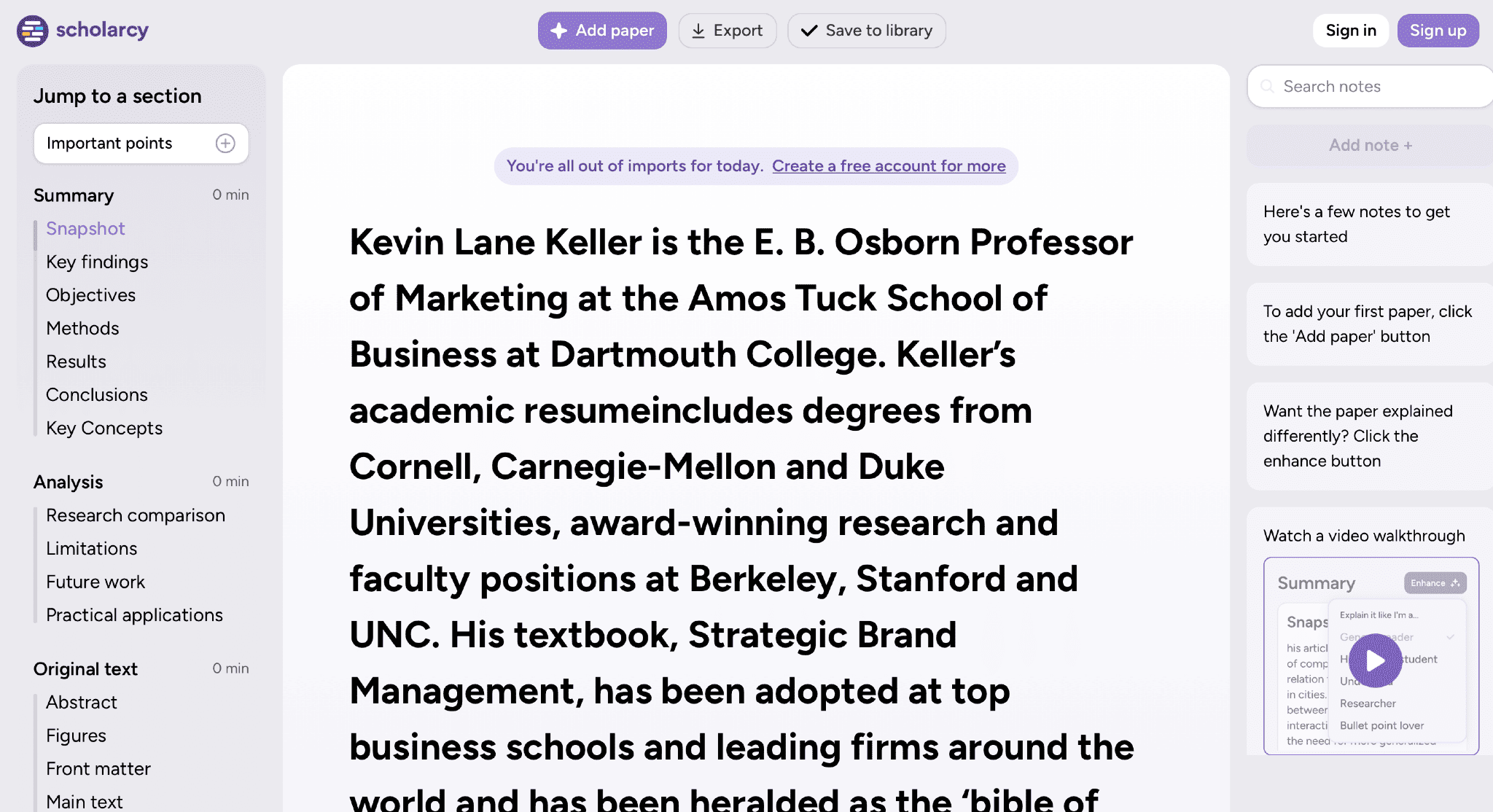
Scholarcy turns papers into summary flashcards that separate key claims, methods, and findings, and AI PDF summarizers for students work best with structure like this, which is where AI PDF summarizers help students most. Its pricing page lists a free Article Summarizer, capped at 10 summaries, and a paid plan with unlimited summaries.
If a flashcard cites a claim you want to confirm, you can find original sources before quoting it.
Key features:
- Structured flashcards from academic papers.
- Flashcard export.
- Unlimited summaries on the paid plan.
Pros:
- Structured output.
- Handy for stacks of papers.
Cons:
- The free tier is limited to 10 summaries.
- Built mainly for academic papers.
11. MindMap AI
🏆 Best for: visual learners
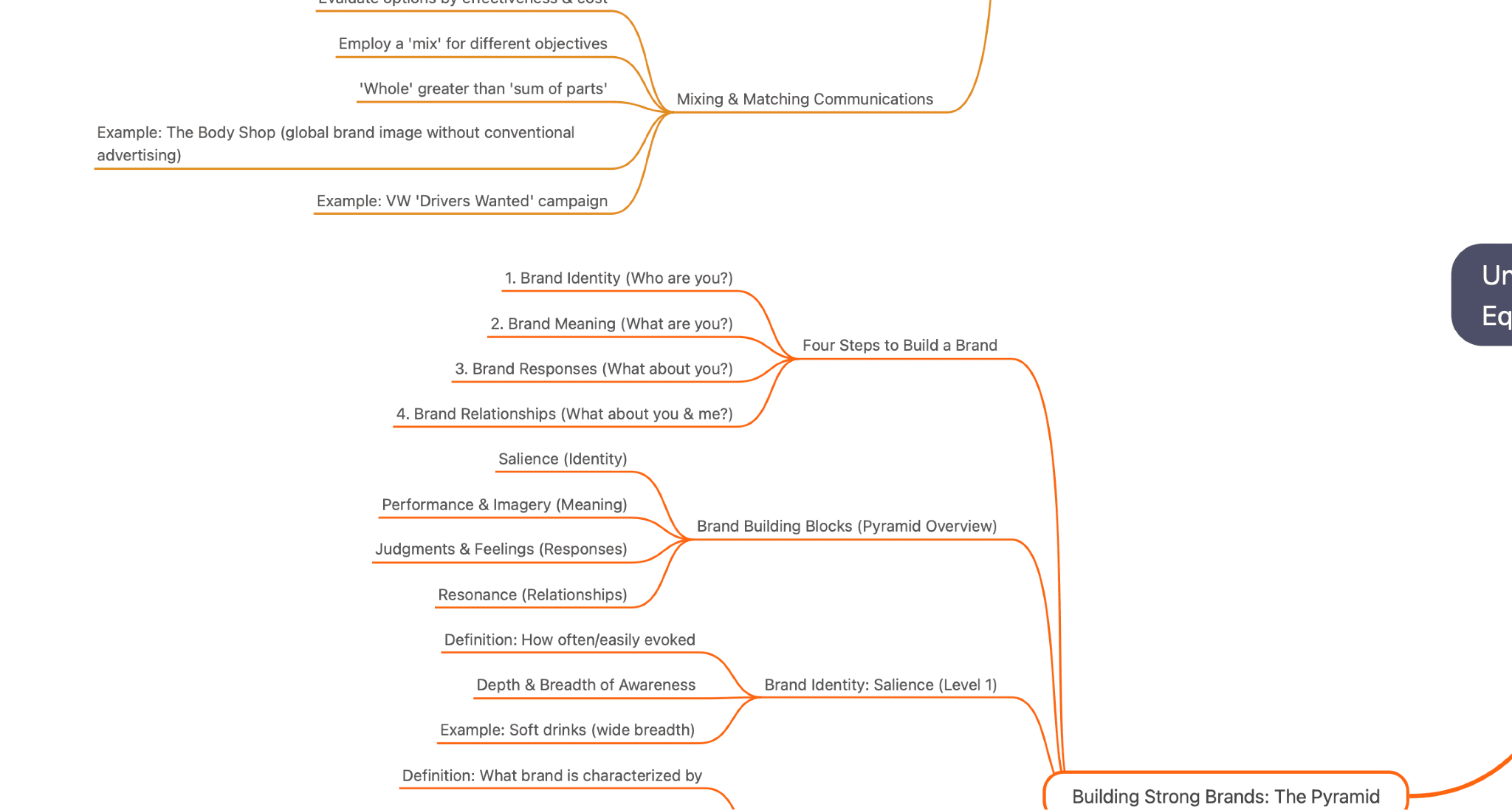
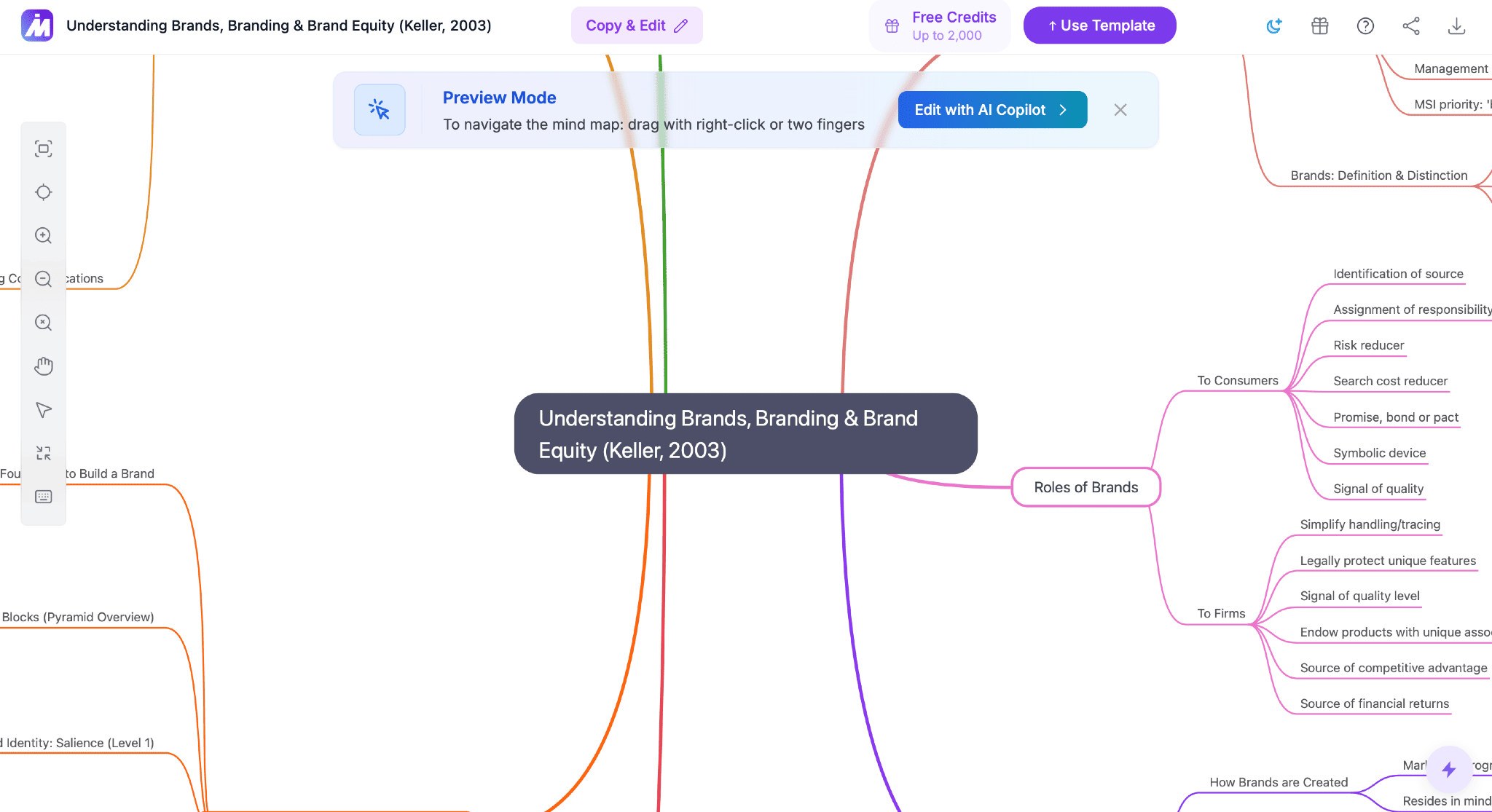
Instead of shorter text, MindMap AI turns a PDF into an interactive mind map with main topics and subtopics. So, you want a one-paragraph takeaway; a map can be more detailed than you need. New accounts get 50 free credits, no card required.
Key features:
- Hierarchical map of a document’s structure.
- Expand, collapse, and edit sections.
- Works on complex, multi-section reports.
Pros:
- Shows how sections connect.
- Editable maps.
Cons:
- Details instead of just a quick one-paragraph takeaway.
📌 Expert tip: Before trusting any summary, spot-check two or three claims against the original pages.
Final Verdict
Of all the top AI PDF summarizer tools here, I’d pick GetSolved for most people, and it’s one of the best tools here: a free AI PDF summarizer with direct upload and a clear output format.
Most free tools on this list work for students and professionals alike, so choose the right tool based on file type. NotebookLM is one of the best AI picks for many PDFs; Claude wins when charts matter; and Scholarcy suits research papers. Before paying, take the free trial or free plan on two or three different tools, upload a PDF to each, and compare the key points they return.
📌 Last tip: whatever tool you pick, treat the summary as a map of the document, not a replacement for it.
FAQ
What is the best free AI tool for summarizing PDFs?
GetSolved, NotebookLM, and ChatPDF are the best ones.
Can AI summarize PDFs with charts and tables?
Yes, for example, Claude can read visuals in PDFs up to 100 pages long. ChatGPT, outside Enterprise, uses only extracted text. With these tools, you can ask them to create a table right inside the chat.
Is it safe to upload confidential PDFs?
Check each privacy policy first. GetSolved says files are never used to train public AI models, and Adobe says it doesn’t use customer document content to train its assistant without consent.
What if my PDF is over 100 pages?
NotebookLM has no page limit, only a 500,000-word cap per source. Claude accepts PDFs up to 1,000 pages, but only reads text beyond page 100.